Live Event Setup
Use Guided Access or kiosk mode
Lock the guest device after camera, network, and booth testing are complete.
On this page
Kiosk-style lock modes keep guests in the booth, but they can also hide browser controls needed for troubleshooting. Configure the booth first, then lock the device for the event.
Steps
Open the live booth link and complete a full test submission before enabling a lock mode.
Confirm camera access, lead capture, consent, result delivery, and the success screen.
On iPad, open the booth link in the browser, tap the share icon, and choose Add to Home Screen. Opening the booth from that new icon runs it full screen, like an app.
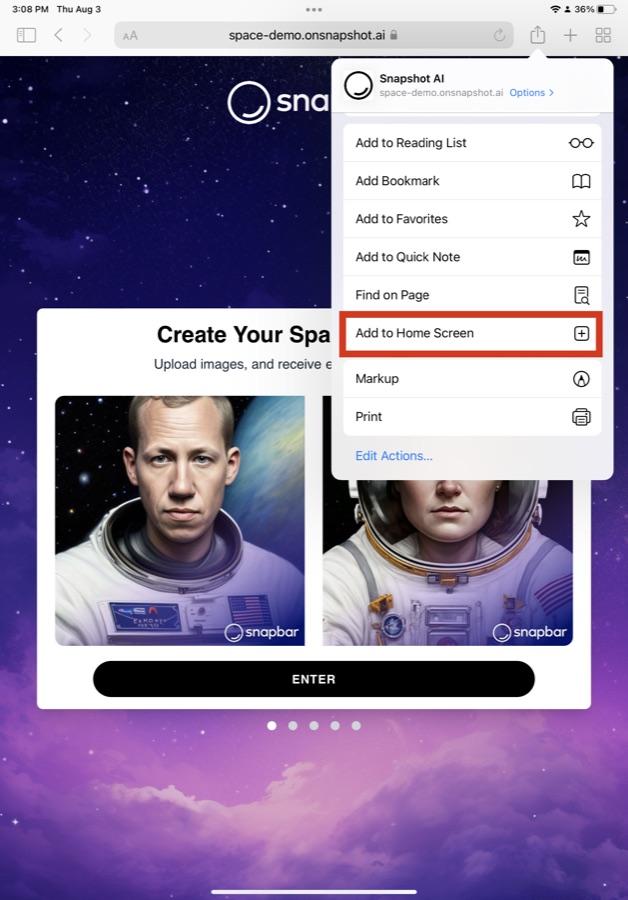
Tap the share icon next to the address bar and choose Add to Home Screen. 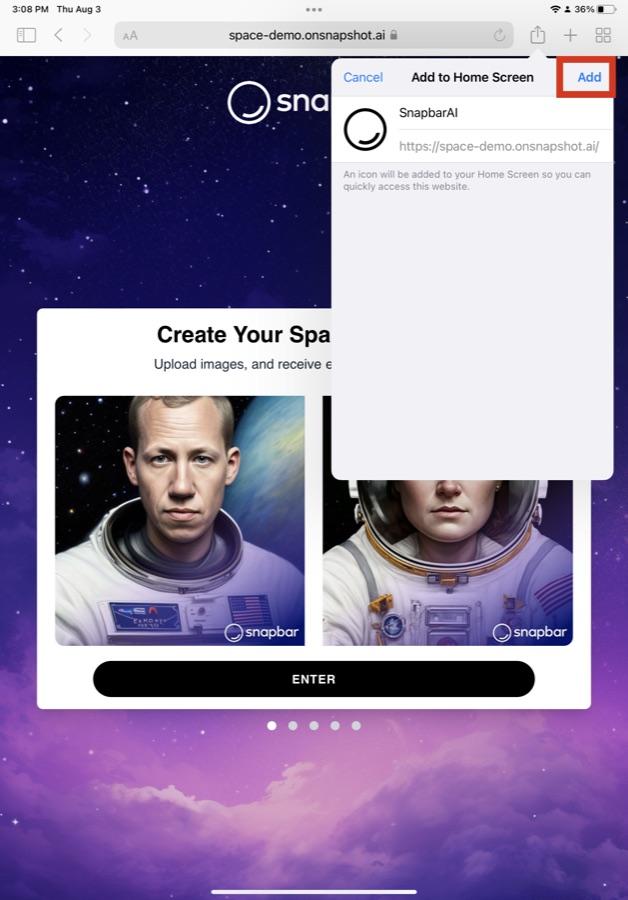
Tap Add to create the booth icon on the home screen. 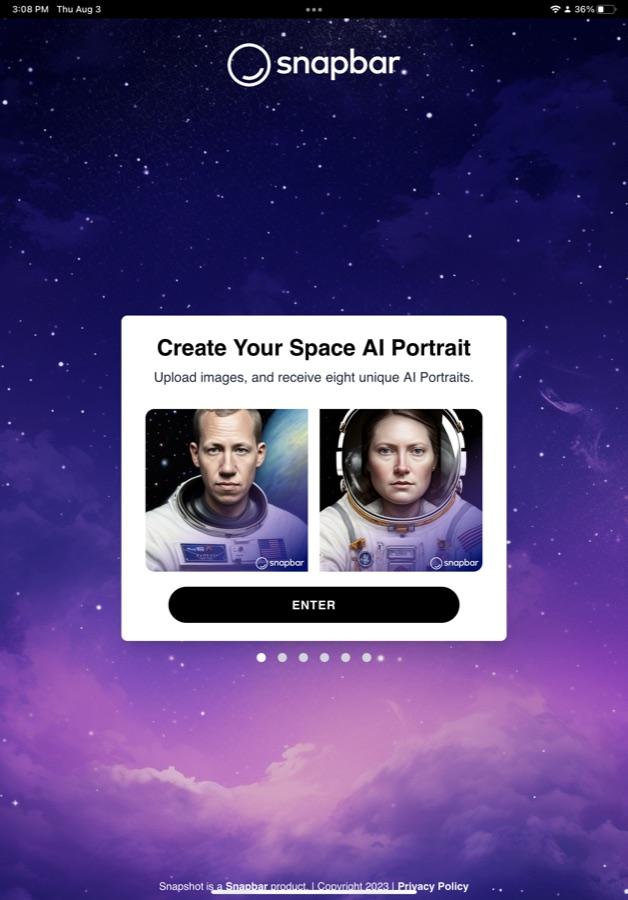
Open the new icon to run the microsite full screen, like an app. Turn on the lock mode. On iPad: open Settings, go to Accessibility, turn on Guided Access, and set a passcode. Then open the booth and triple-click the side button to start the locked session. On a laptop, press F11 (Windows) or Control + Command + F (Mac) to make the browser full screen.
Run another short test while the device is locked.
Document the unlock code or exit shortcut for on-site staff.
Leave lock mode before changing browser permissions, network settings, or the booth URL.
What to know
- Lock modes are device features, not dashboard settings. They are useful for unattended or high-volume activations but should be treated as the last step after configuration is stable.
- To end Guided Access, triple-click the side button again and enter the passcode. On older iPads with a home button, triple-click the home button instead.
- Add to Home Screen plus Guided Access is the full kiosk recipe: the booth runs full screen with no browser toolbars, and guests cannot leave it.
- On a laptop, know the difference between full screen and locked. Full screen (F11, or Control + Command + F on Mac) hides the toolbars, but any guest can press the same key to exit. For a truly locked laptop booth, ask your IT contact to launch Chrome in kiosk mode, which opens one website full screen with no way out except closing the browser.
- If the booth gets stuck, unlock the device first. That gives staff access to refresh, camera permissions, address bar, network settings, and browser controls.
Tips
- Do not share the lock code with guests.
- On iPad you can pre-approve camera access in Settings, under the browser app, so each guest does not have to tap through the permission prompt.
- Keep one staff device outside kiosk mode for dashboard monitoring.
- Re-test lock mode after rotating the device or changing stands, cases, cameras, or cables.