Design and Customization
Configure delivery and sharing
Customize the result email guests receive, then style the recipient gallery and choose the share actions.
On this page
Delivery controls the result email. Sharing controls the personal result page that email opens, called the recipient gallery. Set up both, then complete a test submission.
Customize the result email (Delivery tab)
Open the Delivery tab to see the email preview beside the settings.
The Delivery tab: email preview, branding inheritance, subject line, header, body content, and a Send Test action. If a template selector appears, choose Results for photo results or Video for video results. With one template, the editor opens it directly.
Set the subject line, from name, header, and body text, and check the desktop and mobile preview.
Save your changes, then use Send Test to send the result email to any address you choose. Test sends fill dynamic fields with placeholder data.
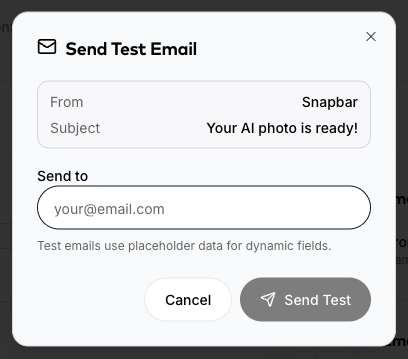
Send Test emails you the saved result email. Test sends use placeholder data for dynamic fields. Open the test email in a real inbox and confirm the wording, branding, and button work.
Customize the recipient gallery (Sharing tab)
Open the Sharing tab to see the recipient gallery preview beside the settings.
The Sharing tab: the recipient gallery preview beside the theme, page content, and social sharing settings. Keep Inherit from Experience on to reuse your booth branding, or turn it off to style the gallery separately.
Edit the page header and subheader so guests know what to do.
Set the share message that pre-fills when guests post to platforms that accept captions.
Turn each share action on or off: Slack, Instagram, TikTok, WhatsApp, X, LinkedIn, Facebook, Email, Copy link, and Download.
Check the Sharing Page Preview beside the settings to see your changes live, then run a real test submission end to end.
What to know
- The email button opens the recipient gallery.That is the personal page where a guest views, downloads, and shares their result. It is separate from the booth and from public displays.
- Delivery tab disabled?If the Delivery tab shows a disabled notice, email delivery is turned off for this experience. Contact Snapbar if it should be turned back on.
- What each share action actually does.Most platforms receive the photo directly when guests share from a phone. Instagram and TikTok do not allow posting from a web page, so the gallery saves the photo for guests to upload in the app. Social Sharing Capabilities covers every action on phones and computers.
Tips
- Use short subject lines and clear button text.
- Keep the gallery header short and friendly, since guests see it right above their own photo.