Getting Started
Find your way around the dashboard
Open your event, find its settings, and create another experience when you need one.
On this page
Snapbar usually prepares your first experience during onboarding. Start by opening that experience in your team workspace.
Find your event
Select Dashboard in the top navigation. Check the team name in the profile menu on the right; use that menu to switch teams when needed.
Dashboard opens your events. The team menu on the right switches workspaces. Under Your Experiences, select the event name or Manage. Use the table view if you prefer a list to photo cards.
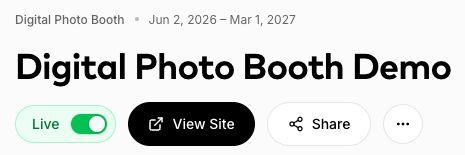
Check the experience name before editing. View Site opens the guest microsite; Share provides its link and QR code.
Find the settings you need
Inside the experience, use Microsite to design the guest screens, Delivery for result emails, Sharing for the recipient gallery, and Displays for event screens. Spin-to-Win manages its wheel screens from Experience instead of Sharing and Displays.
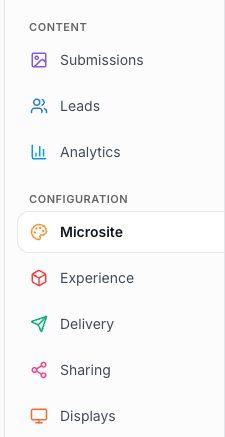
Choose a configuration tab to prepare your event. The tabs you see depend on your role and experience type. When your event is running, use Submissions to review captures, Leads to review guest information, and Analytics to see results. Spin-to-Win uses Winners in place of Submissions to review plays and prizes.
Create another experience
Choose Create in the top navigation, then choose an experience type.
Enter a clear event name, confirm the type and start date, and add an optional description. Create the experience to open your draft.
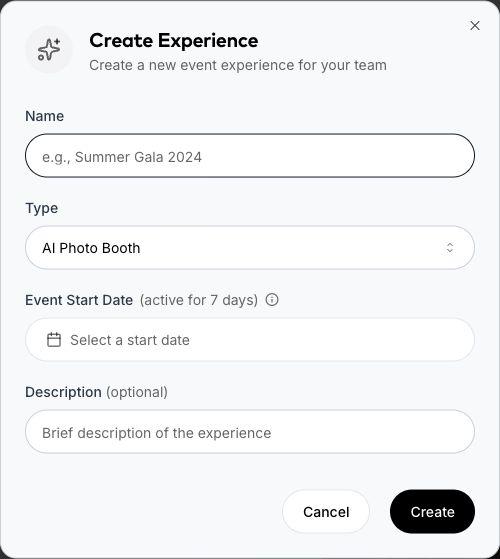
Name the experience and choose its start date before creating the draft. Set up the microsite, delivery, sharing, and any displays before publishing or requesting launch.
What to know
- Missing a tab or control?Your role and experience type determine which controls appear. Ask a team owner to review your access if something you need is missing.
- Need a different event date or advanced setup?Contact Snapbar for date changes, AI styles, prompts, and other settings your team cannot edit directly.
Tips
- Give each experience a recognizable event name so links, exports, and reports are easy to identify later.