Customize display appearance
Tune gallery, slideshow, and Live Mosaic appearance before sharing the display link.
Displays
Written forEvent producersDisplay settings control how submitted content is presented after capture. Use gallery settings when people browse results, slideshow settings when a screen should rotate automatically, and Live Mosaic settings when the mosaic should build from a source image.
Steps
- 1Open the experience and choose Displays.
- 2Open the display you want to edit.
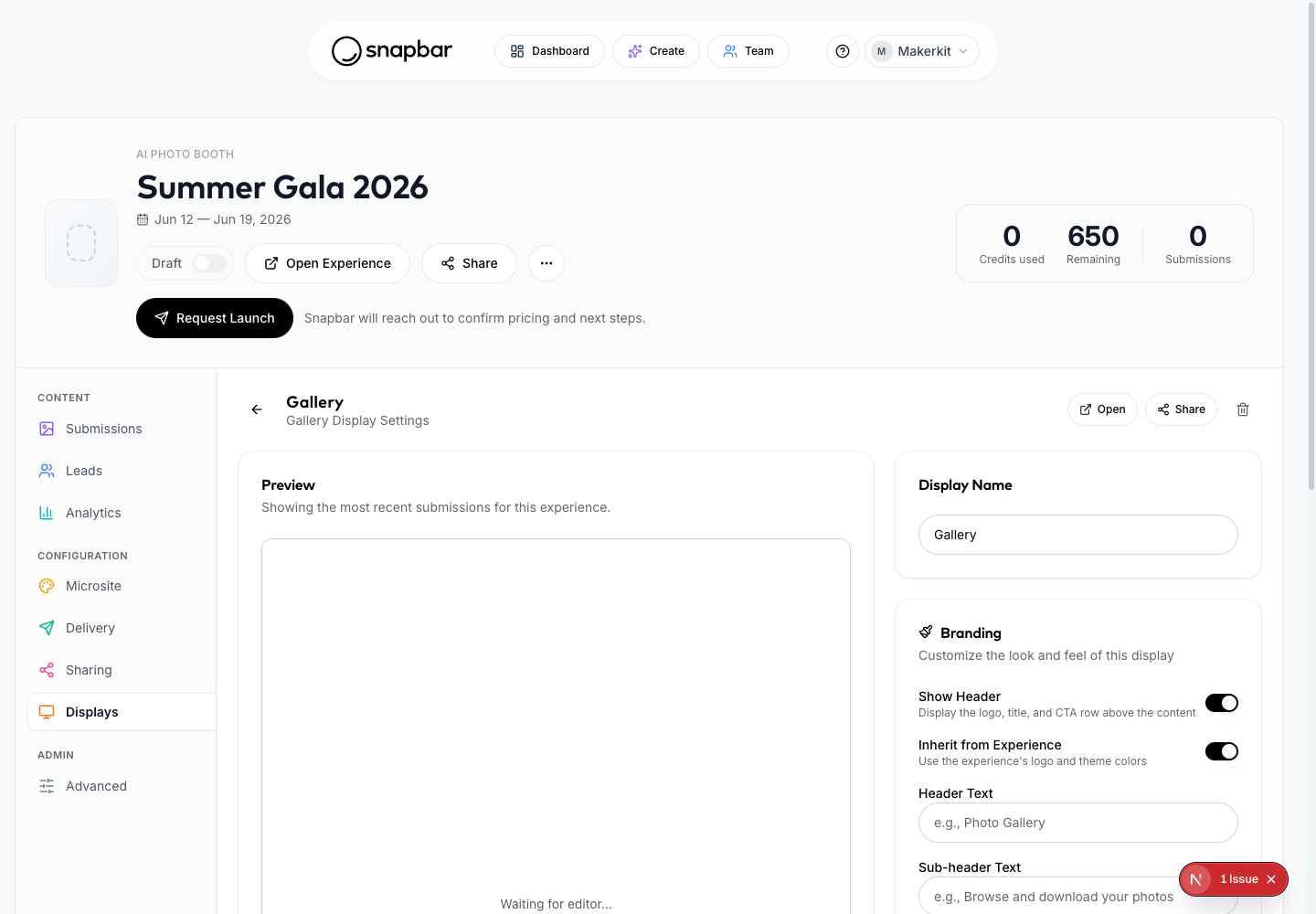
Gallery display settings open beside a live preview so layout changes are easy to check. - 3For galleries, adjust desktop columns, gap, items per page, sort order, download, and share controls.
- 4For slideshows, adjust the rotation speed, loop behavior, and New Photos setting. Load at the top keeps the newest photo first. Load at the bottom adds each new photo after the existing wall so photos already on screen stay in place.
- 5For Live Mosaic, upload the source image, choose aspect ratio and grid density, apply the grid, and tune the mosaic look.
- 6Use Common Settings to update the background color and password protection when needed.
- 7Save changes and preview the display on the real screen size or website container.
What to know
- Gallery settings help with post-event review, embedded recap pages, and guest browsing. Slideshow settings help with venue screens and passive event displays.
- Live Mosaic uses its own setup flow because it depends on a source image and tile grid. Its branding is simpler on purpose: the full-screen mosaic can show your experience logo, but it does not use the header text or buttons that galleries have.
- Use the preview as a first pass, then test with real submissions. Empty or sparse displays can look different once many images or videos are available.
- Slideshow playback controls sit in the bottom right corner of the display itself, once at least one photo is on screen. On a touchscreen, a three-dot handle stays visible: tap it to open the playback controls, then tap it again or wait a few seconds for them to close. On a screen driven by a mouse or a remote, the same controls appear when the pointer moves or a key is pressed, and fade back out on their own.
Tips
- For large venue monitors, prioritize fewer items and comfortable pacing over dense layouts.
- If guests should download or share from a gallery, confirm those controls are enabled before publishing the display link.
- Use the same display background color as the event or sponsor design when possible.
Related articles
Still need help?
Tell us the experience name and what you were trying to do, and our team will pick it up from there.