Design and Customization
Edit AI styles, prompts, and artwork
Write a clear prompt, use inspiration, and add logos or guest answers.
On this page
Open Experience to create the look guests receive. The prompt controls the AI image; text and artwork layers add exact branding afterward.
Describe the look
Open your style and write in Describe the Look. Include the setting, outfit, lighting, visual style, and framing. Say what should stay recognizable.
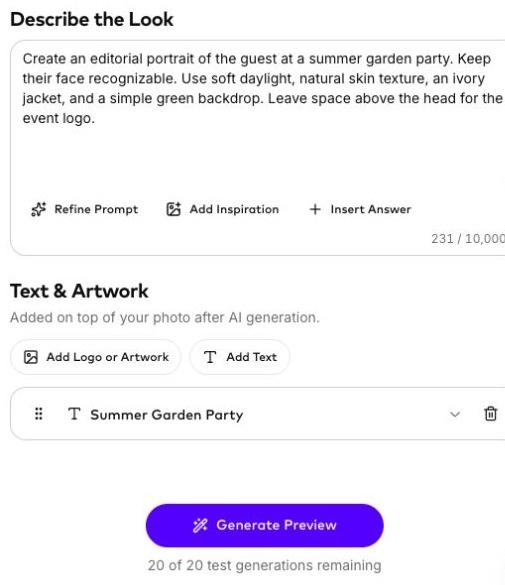
Write the look first, then add exact branding in Text & Artwork. Example: “Create an editorial portrait of the guest at a summer garden party. Keep their face recognizable. Use soft daylight, natural skin texture, an ivory jacket, and a simple green backdrop. Leave space above the head for the event logo.”
Choose Aspect ratio in Experience Settings before finalizing artwork. For AI Video, put movement in Describe the Motion.
Get help writing or use inspiration
With an empty prompt, choose Help Me Write, describe the look you want, then confirm. With an existing prompt, choose Refine Prompt and describe one specific change. Review the result; Undo is available until you edit it.
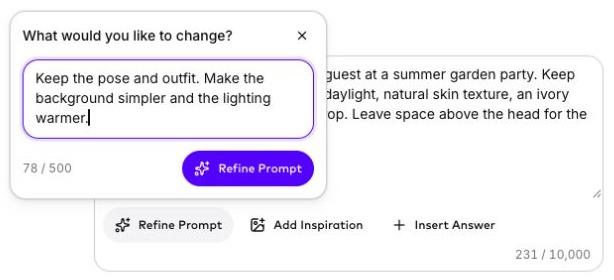
Ask for a specific change while keeping the parts you already like. Use Add Inspiration for an image you have permission to use. Recreate this image uses the image to guide the scene and composition, when supported. Borrow its style adds its colors, lighting, and style to your prompt.
Removing an image used for Borrow its style does not remove the words it added. Edit those words if you want a different look.
Personalize with guest answers
Create the fields first: Microsite > Data, Experience > Story, or Experience > Quiz, depending on the product.
Choose Insert Answer in the prompt where an answer should change the scene. Use Insert Answer in a text layer where the exact answer should appear on the finished image.
Test with representative answers. Do not put private guest information into your reusable prompt.
Add exact branding
Under Text & Artwork, choose Add Logo or Artwork or Add Text. Set text, font, color, and size, then drag the layer on the preview to position it.
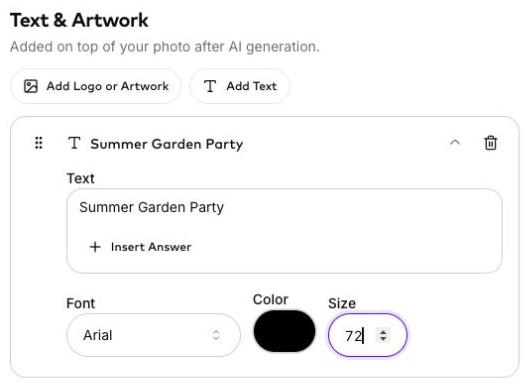
Text layers support fixed copy and guest answers. Use transparent artwork and leave space for faces. Check sizes and upload locations before designing a full-frame overlay.
Generate and compare previews. Use Save for a draft; on a live experience, Publish saves your current edits and makes them available to guests.
What to know
- In AI Stories and Persona Quiz, the styles are below the story or quiz in the same Experience tab.
- You need permission to edit experiences, available to Primary Owners, Admins, Partner Admins, and Experience Managers. Data Managers cannot access this tab.
- You can edit existing styles and set up the first one. Ask Snapbar or your Partner Admin for additional styles. Contact Snapbar for locked video settings, including video length.
- Help Me Write, Refine Prompt, and Borrow its style share a limit of 30 uses per person per hour, including Partner Admins. If you reach it, wait before trying again.
Tips
- Start with a short, coherent prompt. More words do not automatically make a better image.
- Describe a change precisely: “simpler green background” is more useful than “make it better.”
- Use artwork layers for an exact sponsor logo or text; do not rely on generated lettering.