Design and Customization
Test and refine your AI style
Compare previews, understand test limits, and save the look you want to launch.
On this page
Use style previews to check the creative before launch. Then test the published guest flow separately to check capture, processing, and delivery.
Generate a useful test
Open Experience and choose a style. Finish the prompt and artwork you want to test.
Choose Test Photo. Use a supplied sample or an image you have permission to use. To check how real guest answers affect the result, also test the full guest flow.
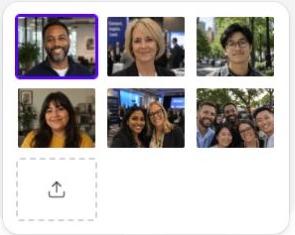
Choose a supplied sample in Test Photo, or upload an image you have permission to use. Select Generate Preview, or Generate Video Preview for AI Video. Wait for it to finish before judging the result.
The remaining-test count appears below Generate Preview. Check the face, framing, background, and artwork. For video, watch the entire clip. Use Refine Prompt or edit the prompt directly to change one thing, then generate and compare again.
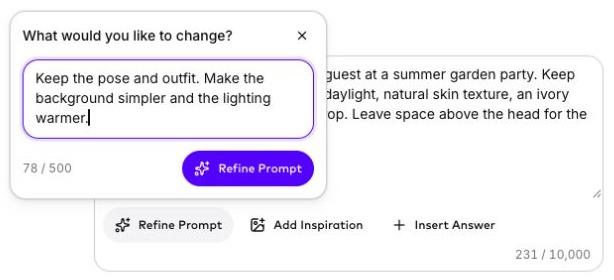
Ask for a specific change while keeping the parts you already like, then generate another preview.
Keep the version you want
Use the available generation history to compare earlier tests. Restoring a test can change the prompt and generation settings, so review the editor afterward.
Where shown, Use on Site makes the example the guest-facing preview. It does not launch the event or replace the need to save.
Select Save to keep draft edits. For a live event, Publish saves your current edits and makes them available to guests. Run a full guest test after important changes.
When you cannot generate
Check the count below the generation button. Standard editors receive 20 photo tests or 5 AI Video tests per experience.
Teams also share a rolling 30-day allowance of 300 photo tests and 30 video tests. Another experience can use part of that allowance. Contact Snapbar if you need more testing.
A blank prompt, an allowance still loading, or an exhausted allowance can disable generation. Save your work before reloading. If an error continues, send support the experience link and the error message.
What to know
- Preview test allowances are separate from event credits. Partner Admins and Snapbar administrators are exempt from preview test allowances.
- If the starting image fails, the preview stops counting; generate again. If it succeeds but the end frame or video fails, the preview still counts. The failed end-frame or video stage can be retried on the same image, up to three attempts in total.
- Resume requires the same person and matching inputs. If the editor reports different settings, restore them to resume. Starting a new preview with a different prompt, test photo, or video settings uses another test generation. Previews still generating count toward your allowance.
- A preview does not send a guest email or verify your camera, venue network, download flow, or public display.
Tips
- Try different sample faces and longer guest answers before approving the design.
- Keep enough tests for a final check after artwork and copy are approved.