Experiences
Get started with Live Trivia
Build a question set, invite players, and run the game from Present.
On this page
Players join from their phones, answer trivia questions, and climb a live leaderboard on your venue screen. The Snapbar team adds Live Trivia to your account after purchase. Open that game to set it up and rehearse.
Build the game
Open your game and choose Experience. Under Game Settings, choose Presenter-led to run each question from Present, or Self-paced to let players work through the questions on their own phones.
Choose Trivia Pack for ready-made questions, Multiple Choice for up to four answers, or True or False. In a pack, select the questions you want and choose Add to Game; the button shows how many you picked, such as Add 10 to Game. Use Add Question to add more, up to 50.
Write your question and answers, then mark the right answer Correct. Pack questions already have an answer key. A question needs at least two answers and a correct answer to appear in the game.
Under each question, use Players answer to set the timer, from 10 seconds to 2 minutes or no time limit. Use Worth to choose standard, double, or no points.
Speed Bonus under Game Settings gives faster correct answers more points. It is on for a new game. Turn it off to give every correct answer its full points.
Choose Save to keep your changes. Players see the saved game, so save before you run it.
Set the answer key, timer, and points in Experience before running the game.
Brand the screen and the join page
Open Microsite to set the logo and colors used on the display and players’ phones.
On Microsite > General, use Answer Colors to choose the four answer-button colors.
On Microsite > Data, turn on Ask for details when players join if you want a name or email from each player. Edit the Game Terms players accept on the join screen under Microsite > Disclaimer.
Open Displays to edit the Live Trivia display, the screen the room watches. Under How Players Join, choose whether it shows the QR code and the join code, and under On Screen, set the Text Size.
Rehearse
Open Present > Links. Open the Display Link on your venue screen and the Play Link on a phone, or scan the display’s QR code. Enter a nickname, accept the game terms, and choose Join Game. Rehearsal works before launch approval, but each player who joins uses one credit.
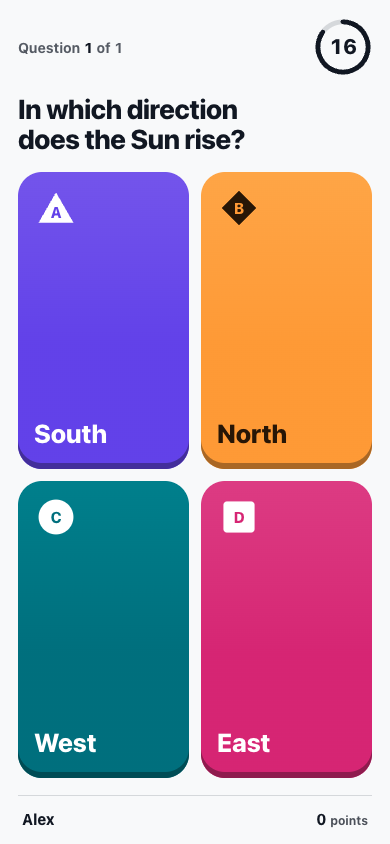
Open the Play Link on a phone to rehearse the player experience. Try the typed route too: Links shows the Join Code and the address players type it at, for anyone who cannot scan.
Request launch when the game is ready. The Snapbar team reviews it, and it goes live as soon as it is approved. You can keep rehearsing in the meantime.
After rehearsing, choose Start Over from the More actions menu on Present to clear answers and scores. Select Also remove players to empty the lobby too. Used credits are not returned.
Run the game
For a presenter-led game, choose Start First Question on Present. Use the main button to Reveal Answer, Show Leaderboard, and move to the Next Question. After the last question, choose Show Final Results. A question reveals automatically once everyone in the game has answered, and a timed question also reveals when time runs out.
Present keeps the venue screen, game controls, and player list together. In a self-paced game, choose Start Game to let players begin and End Game to put the final results up.
Use Screen Settings to change the Text Size or hide the join code, and Phone Remote to run the game from your phone while you walk the room.
The Players list on Present shows who has joined. Use a player’s menu to choose Remove Player; their answers and score come off the leaderboard.
Open Leaderboard for the standings by rank, score, and correct answers, with the results of each question below. Choose Export CSV to download them.
What to know
- A game charges one credit per player for the whole game, counted when the player joins. A removed player who joins again from the same phone is not charged twice.
- A game has no player limit unless you set one: new players can join until the credits run out. To cap it, enter a number under Player Limit on Advanced and save. Everyone already in keeps playing.
- Every nickname in a game is unique. A player who picks one that is taken is asked to try another.
- Answers are final once sent, and the correct answer stays hidden from every phone and the display until the reveal.
- Fixing which answer is marked correct and saving rescores the answers already in.
- Deleting a question players have answered takes their answers and the points they earned for it off the leaderboard once you save.
- If the game asks for details when players join, open Leads to see each player.
Tips
- Keep questions and answers short enough to read from the back of the room.
- Rehearse on the venue Wi-Fi with a few phones.
- Say the join code out loud when you invite the room to play.
- Play a finished game again with a new set of questions, since the same players would know the answers.